
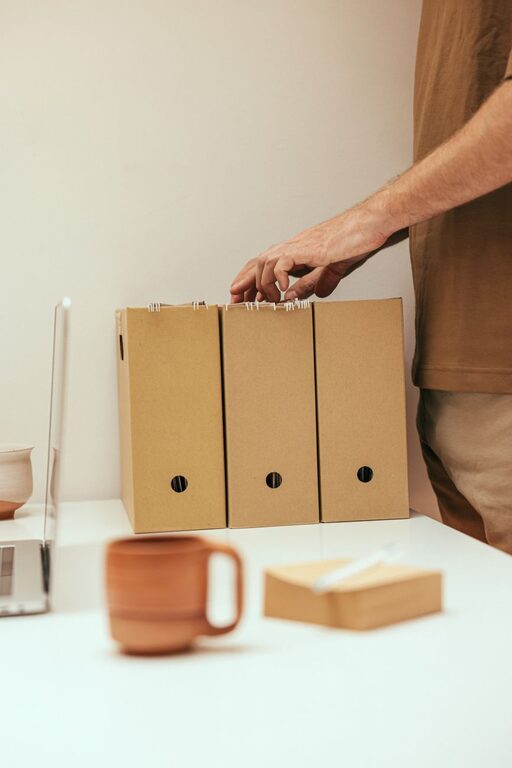
Keeping your computer files well-organized can save you time, reduce stress, and improve your overall productivity. Whether you use your computer for work, school, or personal projects, having a clear system for storing and managing files is essential. In this post, we’ll explore practical tips and best practices to help you organize your digital files effectively.
Why Organizing Files Matters
Before diving into tips, let’s understand why organizing your files is important:
– Saves time: Quickly locate documents without endless searching.
– Reduces clutter: Keeps your desktop and folders tidy.
– Improves backups: Easier to back up important information.
– Prevents data loss: Organized files are less likely to be accidentally deleted.
– Enhances productivity: Spend more time working and less time managing files.
Step 1: Create a Logical Folder Structure
The foundation of file organization is a clear folder system that matches how you work.
Start with Broad Categories
Begin by creating main folders for big categories such as:
– Work
– Personal
– School
– Finances
– Media (Photos, Videos, Music)
This helps separate files by their purpose or subject.
Use Subfolders for Specific Topics
Inside each main folder, add subfolders to organize related files. For example, under Work, you might have:
– Projects
– Reports
– Meeting Notes
– Clients
Avoid creating too many nested folders, but enough to keep files grouped logically.
Step 2: Name Files Consistently
A good naming convention is key for quick searching and sorting.
Use Descriptive Names
Choose file names that describe the content. Instead of “Document1,” use “Budget_Report_Q1_2024.”
Include Dates When Relevant
When files are time-sensitive, add dates in a standard format like YYYY-MM-DD, e.g., “Meeting_Notes_2024-06-20.”
Avoid Special Characters
Stick to letters, numbers, underscores, and hyphens to prevent compatibility issues across devices.
Be Brief but Clear
File names should be short enough to read at a glance but meaningful.
Step 3: Regularly Declutter and Archive
As time passes, old files can accumulate and slow down your system.
Delete Unneeded Files
Go through folders monthly or quarterly and remove duplicates or outdated files.
Archive Files You Might Need Later
Move older but important files to an Archive folder or an external drive to reduce clutter.
Step 4: Use Built-In Tools and Software
Leverage tools your operating system offers for better file management.
Tags and Labels
Many systems let you tag or color-code files, making it easier to sort by priority or project.
Search Functions
Learn to use advanced search options by date, type, or keyword to find files quickly.
Backup Solutions
Use cloud storage or external hard drives for regular backups to protect your organized files.
Step 5: Keep Your Desktop Clean
A cluttered desktop can slow down your computer and increase stress.
Limit Desktop Icons
Only place shortcuts or files you use daily on your desktop.
Create a "To Sort" Folder
If you save files to the desktop temporarily, move them into this folder and organize regularly.
Step 6: Develop a File Organization Routine
Consistency is vital to maintaining order.
– Set aside time weekly or monthly to organize new files.
– Review your folder structure periodically to ensure it still fits your needs.
– Educate family members or coworkers who share the computer about the system.
Additional Tips for Specific File Types
Documents
Convert scanned paper documents into PDFs and file them logically.
Photos and Videos
Organize by date or event to easily browse memories.
Downloads
Empty your Downloads folder regularly and move important files to the correct folders.
—
By applying these tips, your computer files will remain organized, making your digital life smoother. Start small, stay consistent, and soon managing files will be second nature. Happy organizing!